Blog

  • S5 Accordion Menu

    The S5 Accordion menu is demo'd on the right of this page. This version was built specifically for this template and cannot be transferred to another template. We do have another version that can be used on any Joomla template.

    This module is based off the Joomla main menu system module so you can still specify which Joomla menu you want to use with the S5 Accordion menu. The menu is powered off of the Mootools Javascript library but detects to see if the library is already initialized, if so then it doesn't load its own library to stop any conflicts from arising.

    I like what I see! I want to JOIN TODAY.
  • S5 Tab Show

    This version of the module is customized specifically for this template with responsive capability now added and cannot be used with any other templates. We do have another version that can be used on any Joomla template.

    The module holds up to 10 actual module positions so you can publish any of your favorite modules to one of the slides and keep your site clean and consolidated while giving it some eye candy. So simply publish the s5 tab show module to your desired module position and pages. Then start publishing modules to the positions in the tab show (s5_tab1, s5_tab2, etc); these modules will become the slides.

  • Site Shapers

    So what are Site Shapers? They are quick installs of Joomla combined with all the modules, content, etc used on our demo, excluding stock photography. Within a few minutes you can have your site up, running and looking just like our demo. No more importing SQL dumps and installing modules. Just head on over to the download section of this template and grab a Site Shaper. Simply install the Site Shaper like any other Joomla installation, it's that easy!

    How to setup a Site Shaper

    • Login to your cpanel or your server admin panel.
    • Locate the area where your databases are (usually labeled Mysql Databases)
    • Create a new database
    • Next create a new database user and assign it to this newly created database in the previous step
    • You will then need to extract the site shaper to either a folder on your server or the root directory such as WWW. NOTE: if you already have a website in the root of your WWW folder, we suggest creating a new folder and extract the site shaper there. If your cpanel does not have an extract option or you cannot find it, you may also extract the contents of your site shaper in to a folder on your desktop and upload all the files via an ftp client to your server.
    • Next, navigate to the url where you extracted the site shaper via your web browser.
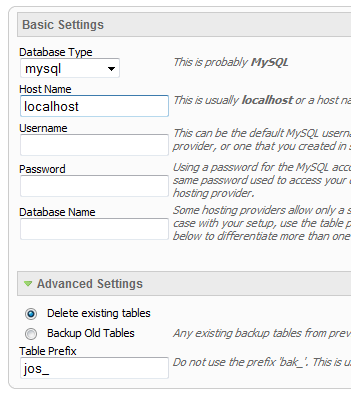
    • Continue through each screen until you reach the below screenshot:
    • At the above screen be sure to enter localhost as shown, continue to fill in the following text fields with your newly created database and username information
    • Follow through the rest of the site shaper setup and click the install sample data at the last screen and the installation is complete! (be sure to rename/remove the installation directory after finishing the install)
  • Tool Tips

    Note – The tool tips script is by default disabled. If you wish to use it you must enable this script in the template's configuration area. This also includes site shaper installations.


    Demo 1:


    Demo 2:

    August 13, 2008

  • S5 Image and Content Fader

    This module can be viewed at the top of this page. This specific style of the module can only be used with this template. Publish your own content into each slide transition and for multiple slide transition effects, navigation arrows and also a drop down gallery tab that allows you to select a slide via a thumbnail. The S5 Image and Content Fader v3 is powered by Mootools by default but still includes the S5 Effects library and allows you to use it in a “legacy module” if you are experiencing script conflicts. Best of all it's free!

    NOTE: Legacy mode will display all your images, titles and slide text but includes limited functionality thus it does not include navigation arrows or the new drop down gallery tab.

    Features at a glance:

    • NEW – Responsive layout compatible
    • horizontal sliding transition
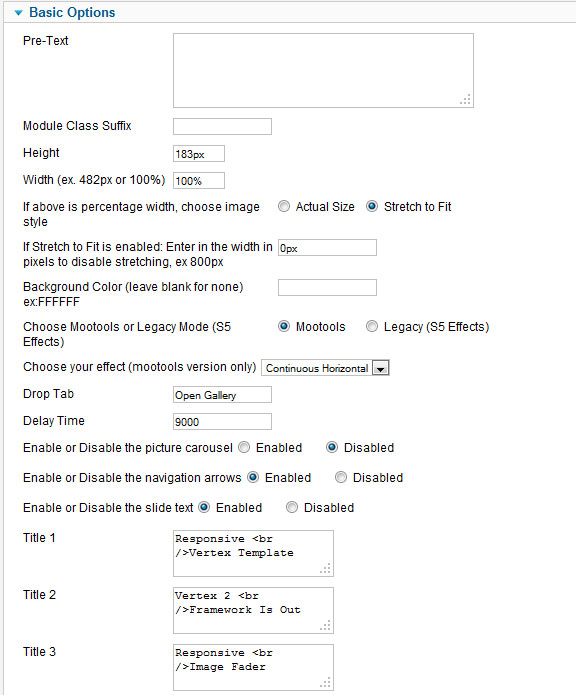
    • Choose between 4 slide transitions: Fade, Contiuous Horiztonal, Fade Slide Left, Continuous Vertical
    • Specify height and width of module
    • Includes a gallery tab drop down to show all images
    • Each image slide can have its own hyperlink
    • Show up to 10 images at once
    • Publish your own content to each picture slide
    • Navigation arrows
    • Not all slides require titles
    • Change delay time
    • Hide or show: Navigation arrows, thumbnail carousel and popup text

    Admin side of the module:

    I like what I see! I want to JOIN TODAY.
  • How To Setup the Search Box and Menus

    1. Search Setup

    • Simply publish the default Joomla search module to the “search” position. Do not apply any module classes.

    2. Column Menu Setup

    • Publish any menu module to the main body module positions on your site.
    • There should be no menu style suffixes applied under advanced parameters.
    • The menu style should be set to list.

    3. Top and Bottom Menu Setup

    • Publish any menu to the 'bottom_menu' or 'top_menu' position.
    • There are no menu style suffixes applied under advanced parameters.
    • The menu style should be set to list
  • Page, Column and Row Widths

    Fixed or Fluid Width

    This template has the ability to set the entire width of your set to either a
    fixed pixel width or a fluid percentage width. You can set the width to any size
    you want.

    Column Widths

    You may also set the widths of the following positions to any width that you
    need to: left, left_inset, right, and right_inset. You may set them to any width
    you need to.

    Row Widths

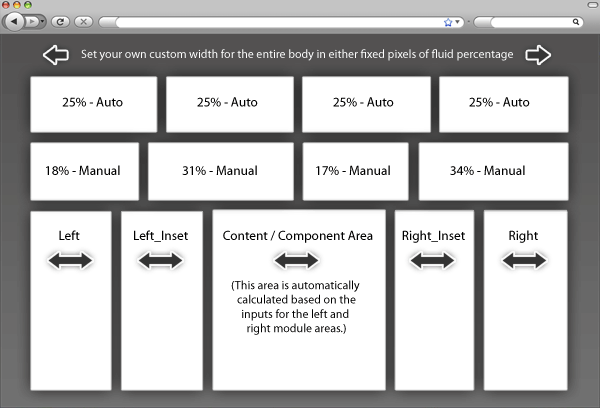
    This template comes loaded with module positions, many of which appear in rows
    of 6 module positions. Any row that contains 6 module positions can have it's
    row columns set to automatic widths or manual. For example, in the picture below
    the first row shows 4 modules published and since it's set to automatic each is
    set to 25% width. The second row shows a manual calculation for each module in
    the row. Again, you may do this for any row that contains 6 modules. If you
    setup a manual calculation they must total to 100%. Not all 6 modules need to be
    used, as shown below.

    All of this is done very easily in the template configuration.

  • The Template’s Settings

    This template comes loaded with options that you can use to customize your site exactly how you want it. Here's how to get to these custom settings:

    1. In the backend of Joomla go menu item Extensions/Template Manager.
    2. Click on the title of the template.
    3. This will bring you to the template manager screen where you can edit the template's parameters.
    4. Click save when you are done

    I like what I see! I want to JOIN TODAY.


  • Installing The Template

      • Download the installation package from our download section.
      • Once the download is complete go to the backend of Joomla.
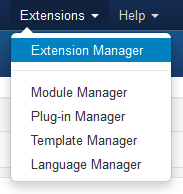
      • Navigate through your menu system to Extensions/Extensions Manager.


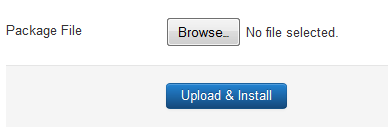
      • Once at the installation screen click the browse button and navigate to where you downloaded the template file.
      • Once you have the file selected click 'Upload File and Install'
      • The template is now installed, now let's set it as the default template:

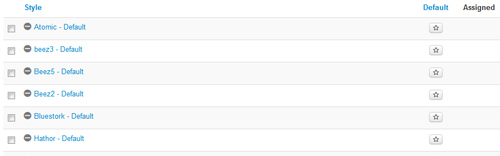
      • Navigate through your menu system to Extensions/Template Manager.
      • Find the radio button next to the newly installed template.
      • Click on the Default button at the top right of the screen and you're done!


  • Module Positions and Styles

    All modules are fully collapsible

    What exactly is a collapsing module? It's quite simple, whenever a module is not published to a postion that position does not appear on the frontend of the template. Consider the example below:

    This particular row has 6 module positions available to publish to. Let's say you only want to publish to 4 of these positions. The template will automatically collapse the modules you do not want to use and adjust the size of the modules accordingly:

    If no modules are published to the row the entire row itself will not show. The best feature of this is every module can be published to its own unique pages so the layout of your site can change on every page!

    Infinite Layouts

    Because there are so many module positions available in so many different areas, the number of layouts you can create are limitless! For example, if you would like to show your main content area on the right side of your site but still have a column of modules, simply published your modules to the right or right_inset positions or both. The same would be true for the opposite, if you want a column on the left simply publish modules to left or left_inset. Of course you can always choose to not have a column at all. Remember, any module not published to will automatically collapse and the remaining area will automatically adjust. There is no need to choose a pre-defined layout for your entire site, simply use the power of collpasing module positions and take advantage of the numerous amount of module positions to create any layout you can dream of! Be sure to checkout the layout of modules below.

    Dozens of Modules

    Below is a complete list of all the module positions available for this template.

    How to install and setup module styles:

    1. Download any module you wish to publish to your site.
    2. In the backend of Joomla navigate to the menu item Extensions/Install Uninstall
    3. Browse for the module's install file and click Upload File & Install.
    4. Once the module has be installed navigate to the menu item Extensions/Module Manager (same menu as above)
    5. Find the Module just installed and click on it's title.
    6. Change any parameters that you wish and be sure to set it to published and publish it to your desired module position.
    7. To apply a module style simply fill in the module class suffix field with any of this template's included module styles. This parameter setting is found under Module Parameters on the right side of the screen.
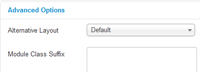
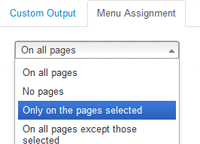
    8. Assign what pages you would like the module to appear on and finally click Save.